Russia


How to Set Up a Valheim Dedicated Server in 2026
A complete step-by-step guide to hosting Valheim on Windows, Linux, or cloud servers with better performance, backups, security, and crossplay support.
by hamza
Why Use a Dedicated Server for Valheim?
Valheim continues to be one of the most enjoyable survival sandbox games in 2026. While playing solo is fun, the game becomes much better when explored with friends. A dedicated server allows your world to stay online 24/7, even when the host is offline.
With a dedicated server, players can join anytime, build freely, fight bosses, explore new areas, and continue progressing without depending on one player’s computer.
If you want a faster and hassle-free solution, you can try our dedicated server and start playing without manual configuration.
Quick Summary
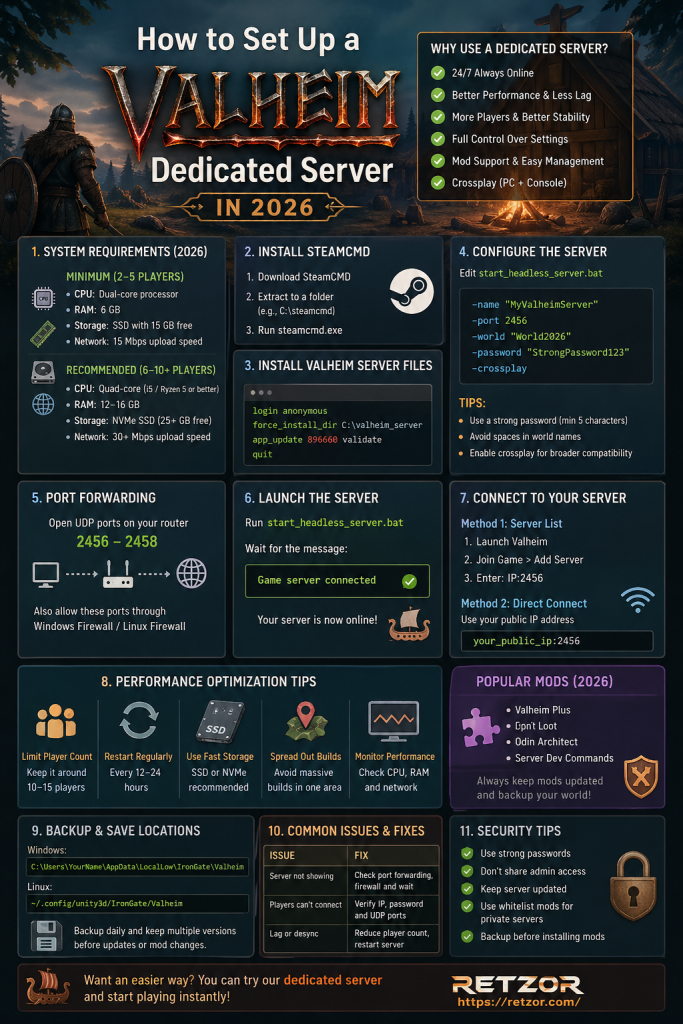
- Choose Windows, Linux, or cloud hosting.
- Install SteamCMD and Valheim server files.
- Configure your server name, world, password, and crossplay.
- Open UDP ports 2456–2458.
- Optimize performance, backups, and security.
System Requirements for 2026
Minimum setup for 2–5 players: dual-core CPU, 6 GB RAM, SSD with 15 GB free storage, and at least 15 Mbps upload speed.
Recommended setup for 6–10+ players: quad-core CPU, 12–16 GB RAM, NVMe SSD with 25 GB free storage, and 30 Mbps upload speed or better.
1) Hosting a Valheim Server on Windows
Windows is the easiest option for beginners. First, install SteamCMD, then use it to download the Valheim dedicated server files.
login anonymous
force_install_dir C:\valheim_server
app_update 896660 validate
quit
force_install_dir C:\valheim_server
app_update 896660 validate
quit
After installation, open start_headless_server.batand edit the server settings.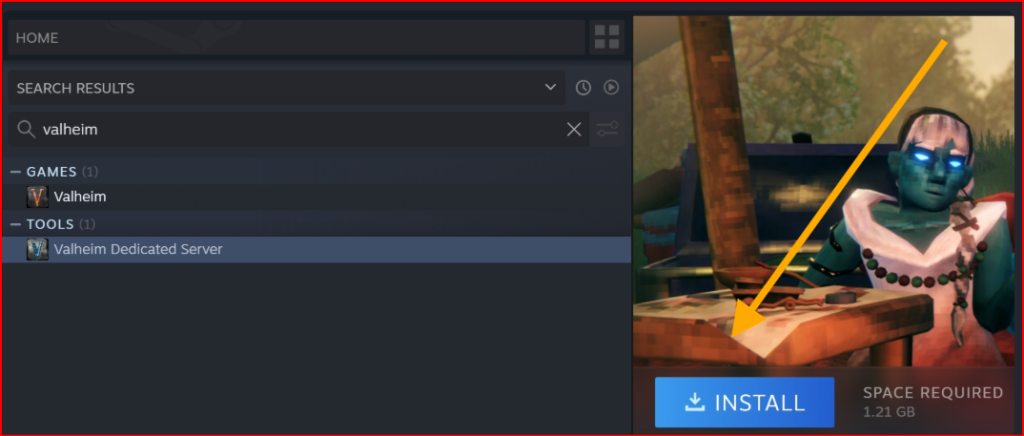
2) Configure Your Server
Update your server name, world name, password, port, and crossplay setting.
-name “MyValheimServer”
-port 2456
-world “World2026”
-password “StrongPassword123”
-crossplay
-port 2456
-world “World2026”
-password “StrongPassword123”
-crossplay
Use a strong password, avoid spaces in world names, and enable crossplay if you want broader compatibility.
3) Open Valheim Server Ports
To allow other players to connect, open the required Valheim ports on your router and firewall.
UDP 2456–2458
Once the ports are open, launch the server file. When you see “Game server connected,” your server is live.
4) Hosting Valheim on Linux
Linux is recommended for stable 24/7 hosting. Start by installing dependencies:
sudo apt update
sudo apt install lib32gcc-s1 wget tar
sudo apt install lib32gcc-s1 wget tar
Install SteamCMD:
mkdir steamcmd && cd steamcmd
wget https://steamcdn-a.akamaihd.net/client/installer/steamcmd_linux.tar.gz
tar -xvzf steamcmd_linux.tar.gz
wget https://steamcdn-a.akamaihd.net/client/installer/steamcmd_linux.tar.gz
tar -xvzf steamcmd_linux.tar.gz
5) Install and Start the Linux Server
Run Steam CMD and install the server files:
./steamcmd.sh
login anonymous
force_install_dir ~/valheim_server
app_update 896660 validate
quit
login anonymous
force_install_dir ~/valheim_server
app_update 896660 validate
quit
Create a startup script:
#!/bin/bash
./valheim_server.x86_64 -name “Valheim2026” -port 2456 -world “World2026” -password “StrongPass” -crossplay
./valheim_server.x86_64 -name “Valheim2026” -port 2456 -world “World2026” -password “StrongPass” -crossplay
6) Cloud Hosting Option
Cloud hosting is the easiest option if you do not want to manage files, ports, backups, and updates manually. It usually includes automatic updates, DDoS protection, daily backups, and global locations.
For a simpler setup, you can try our dedicated server and get started instantly without dealing with configuration.
7) How to Connect to Your Server
Launch Valheim, go to Join Game , click Add Server , and enter your server address.
your_public_ip:2456
Performance Optimization Tips
| Tip | Why It Helps |
|---|---|
| Limit players to 10–15 | Keeps performance stable. |
| Restart every 12–24 hours | Reduces lag and memory issues. |
| Use SSD or NVMe storage | Improves world save performance. |
| Spread out large builds | Prevents heavy object loading in one area. |
Mods in 2026
Mods can make your Valheim server more fun, but they must be managed carefully. Popular options include Valheim Plus, Epic Loot, Odin Architect, and Server Dev Commands.
Always make sure every player uses the same mod versions, and create a backup before installing or updating mods.
Backup and Save Locations
Backups are essential, especially before updates, mod changes, or major world edits.
Windows: C:\Users\YourName\AppData\LocalLow\IronGate\Valheim
Linux: ~/.config/unity3d/IronGate/Valheim
Linux: ~/.config/unity3d/IronGate/Valheim
Keep daily backups and store multiple versions so you can recover your world if something goes wrong.
Security Tips
- Use a strong server password.
- Do not share admin access publicly.
- Keep your server files updated.
- Use whitelist mods if you want private access only.
- Back up the world before installing mods.
Common Issues and Fixes
| Issue | What to Do |
|---|---|
| Server not showing | Check port forwarding, firewall settings, and wait a few minutes. |
| Lag or desync | Reduce player count, restart the server, and spread out large builds. |
| Players cannot connect | Verify the IP address, password, and UDP ports 2456–2458. |
Final Thoughts
Setting up a Valheim dedicated server in 2026 is easier and more flexible than ever. Whether you host locally, use Linux, or choose a cloud server, a dedicated setup gives you a persistent multiplayer world that stays online even when you log off.
For players who want full control, manual setup is a great option. But if you prefer instant access and convenience, you can try our dedicated server and start playing immediately without technical setup.