Russia


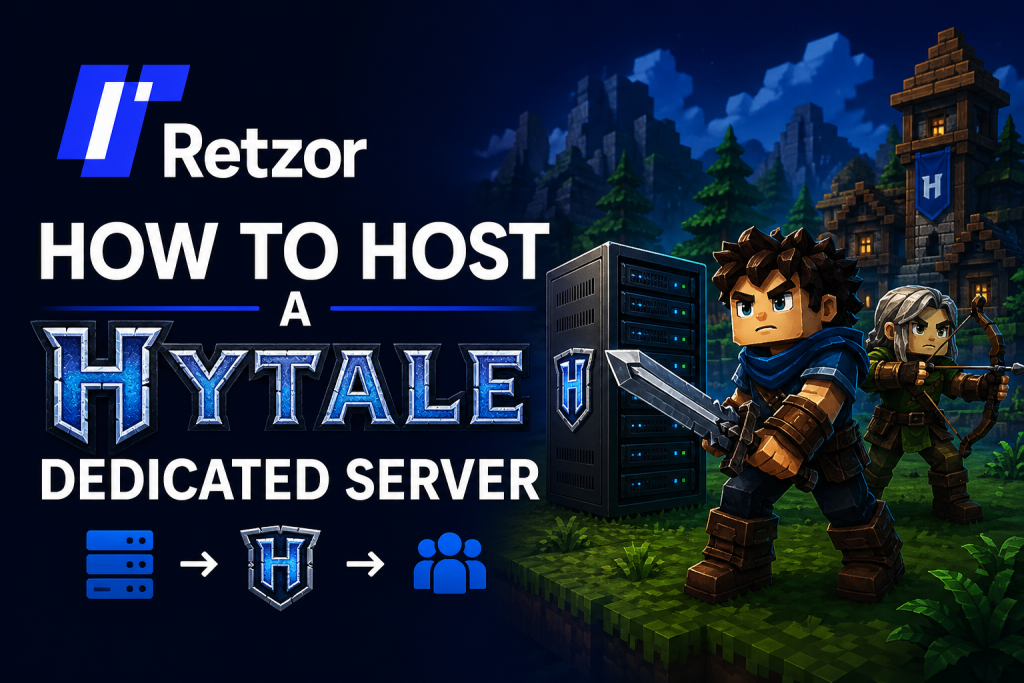
How to Host a Hytale Dedicated Server: Complete 2026 Setup Guide
Learn how to install, configure, launch, secure, and optimize your own Hytale dedicated server.
by hamza
What Is a Hytale Dedicated Server?
A Hytale dedicated server is a separate server application that hosts your multiplayer world without requiring one player to keep the game open. It is useful for private groups, public communities, roleplay servers, survival worlds, minigames, and modded experiences.
With a dedicated server, you get better control over settings, uptime, player access, backups, and future server growth.
Quick Summary
- Install the Hytale launcher and locate the server files.
- Install the correct Java version required by the server.
- Start the server using the Hytale server JAR file.
- Authenticate the server with your Hytale account.
- Configure server settings, ports, backups, and performance.
1) Check Hytale Server Requirements
Before hosting a Hytale server, make sure your machine or VPS has enough power. Small private servers need fewer resources, while public or modded servers require stronger hardware.
- CPU: Modern multi-core processor
- RAM: 8 GB minimum, 16 GB or more recommended
- Storage: SSD storage for faster loading
- Network: Stable upload speed and low latency
2) Locate the Hytale Server Files
The dedicated server files are usually included with the official Hytale installation. Look for the server JAR file and the assets package inside the Hytale installation directory.
HytaleServer.jar
Assets.zip
Assets.zip
3) Install Java
Hytale dedicated servers run through Java, so you need to install the required Java version before launching the server. After installing Java, confirm it works from your terminal or command prompt.
java -version
4) Start the Hytale Dedicated Server
Open a terminal inside the folder where the server file is located. Then run the server using the JAR file and point it to the assets package.
java -jar HytaleServer.jar --assets ../Assets.zipOn the first launch, the server may create configuration files and ask you to authenticate.
5) Authenticate Your Server
Hytale servers may require account authorization before becoming fully active. In the server console, use the authentication command and follow the instructions shown on screen.
/auth login device
6) Configure Server Settings
After the first launch, stop the server and edit the configuration files. These settings can control the server name, player limit, world options, permissions, and network settings.
{
  "serverName": "My Hytale Server",
  "maxPlayers": 20,
  "onlineMode": true,
  "motd": "Welcome to my Hytale world!"
}
Recommended Server Specs
| Server Size | Recommended Specs |
|---|---|
| Small Private Server | 2–4 CPU cores, 8 GB RAM, SSD |
| Medium Community Server | 4–6 CPU cores, 16 GB RAM, SSD |
| Large Public Server | 8+ CPU cores, 32 GB RAM, NVMe SSD |
7) Open Ports or Use a Tunnel
To allow players outside your home network to join, you need to open the correct server port on your router or use a tunneling service. Port forwarding is common for VPS hosting, while tunneling can be easier for home hosting.
Router Settings → Port Forwarding → Server IP → Hytale Port
8) Invite Players to Join
Once the server is online, players can connect using your server address, hostname, or tunnel address. For public servers, use a clean domain or subdomain to make the address easier to remember.
play.yourhytaleserver.com
9) Back Up Your Hytale World
Backups are important for every dedicated server. Before installing mods, changing settings, or updating the server, create a backup of your world and configuration files.
Stop server → Copy world folder → Save backup → Restart server
10) Optimize Server Performance
Good performance depends on hardware, network quality, and server settings. Use SSD storage, keep your system updated, avoid too many heavy mods, and monitor RAM and CPU usage.
- Use SSD or NVMe storage
- Limit unnecessary background apps
- Restart the server regularly
- Monitor CPU, RAM, and network usage
- Keep backups before major changes
Common Hytale Server Problems
| Problem | Solution |
|---|---|
| Server will not start | Check Java version and server file path. |
| Players cannot join | Check firewall, ports, tunnel, or server address. |
| Lag or high ping | Use better hosting, reduce player count, or choose a closer server region. |
| World data issue | Restore the latest backup. |
Final Thoughts
Hosting a Hytale dedicated server gives you full control over your multiplayer world. You can create a private server for friends, build a public community, test mods, or run a long-term survival world.
Start with a simple setup, test your connection, back up your files, and improve performance as your server grows. With the right configuration and reliable hosting, your Hytale server can become a stable home for your players.